


Add user
There are three ways to add users into Passwork:
- Manual user creation — administrator can manually create new users.
- Self-registration — administrator can share their Passwork instance URL with users, allowing them to register themselves. The administrator has to confirm the registration before a user can start using Passwork.
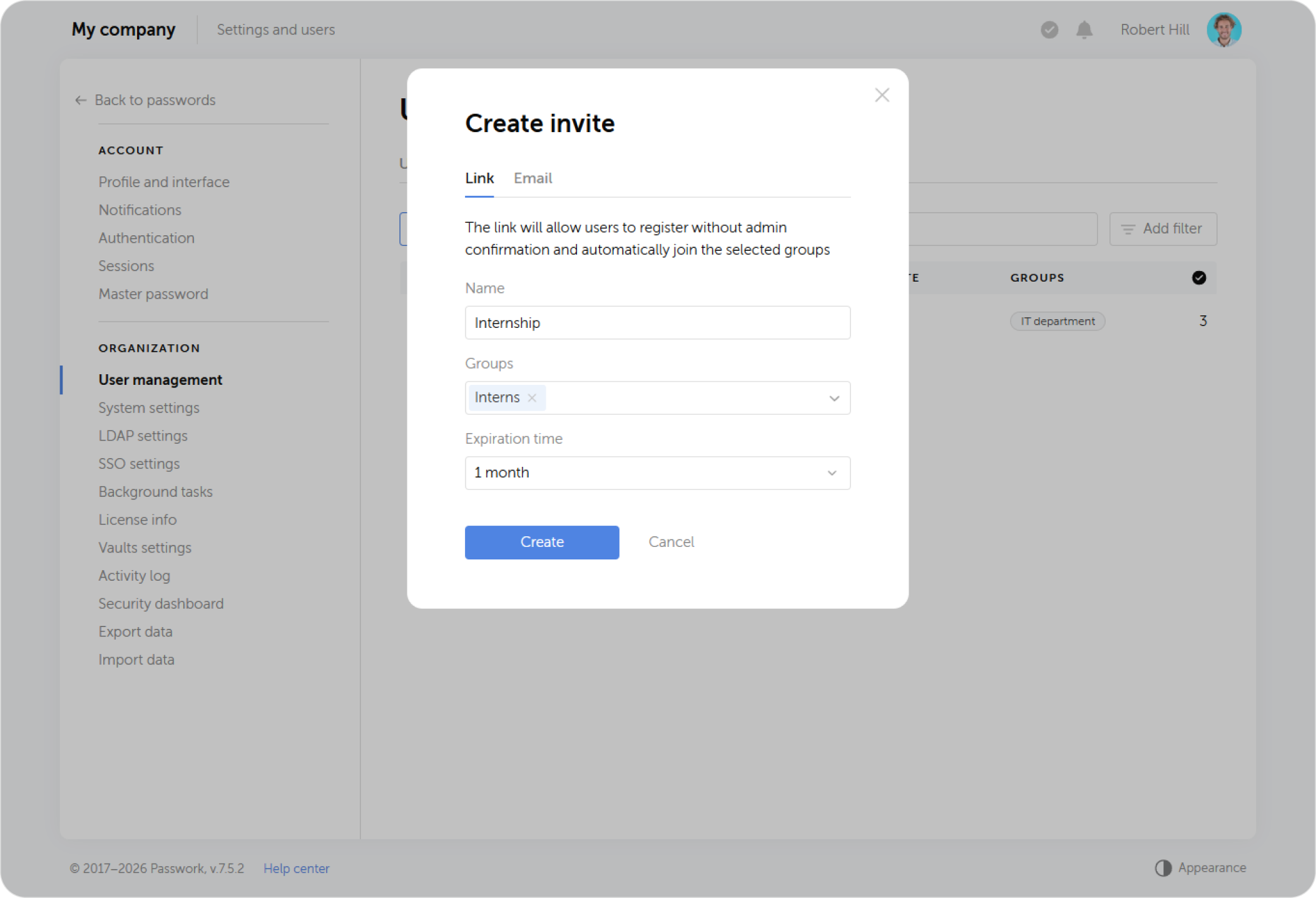
- Self-registration using an invite link — administrator can send an invite to a user, which they will be able to use during registration. When creating an invite, you can pre-assign groups to the user, which allows them to start using Passwork immediately after registration without needing administrator approval.
Add users manually
You can create a new user on the Users tab in User management. Corresponding rights are required to perform this action.
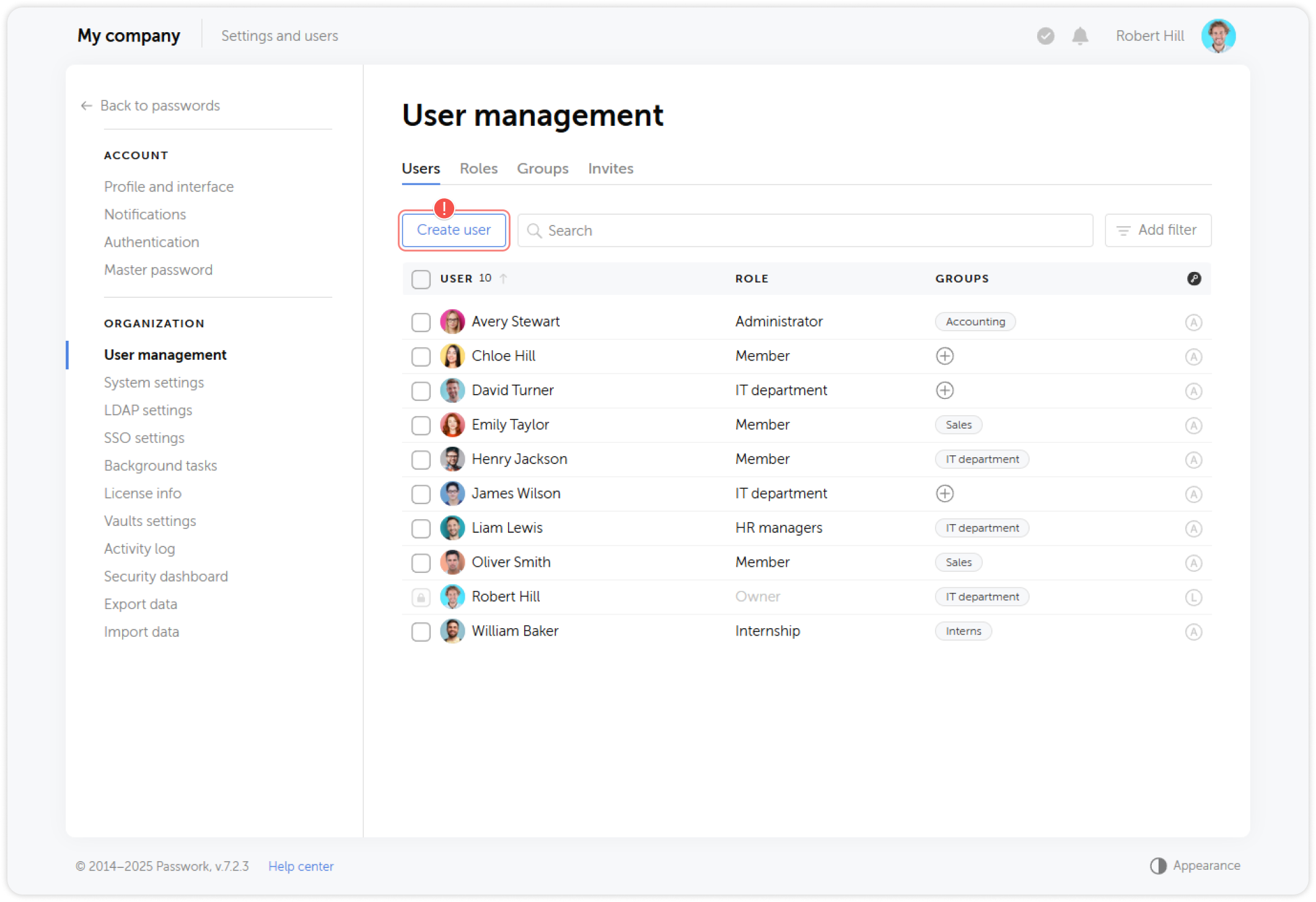
Open the Users tab and click Create user at the top:
There are two types of accounts in Passwork: user and service account.
Creating a user account
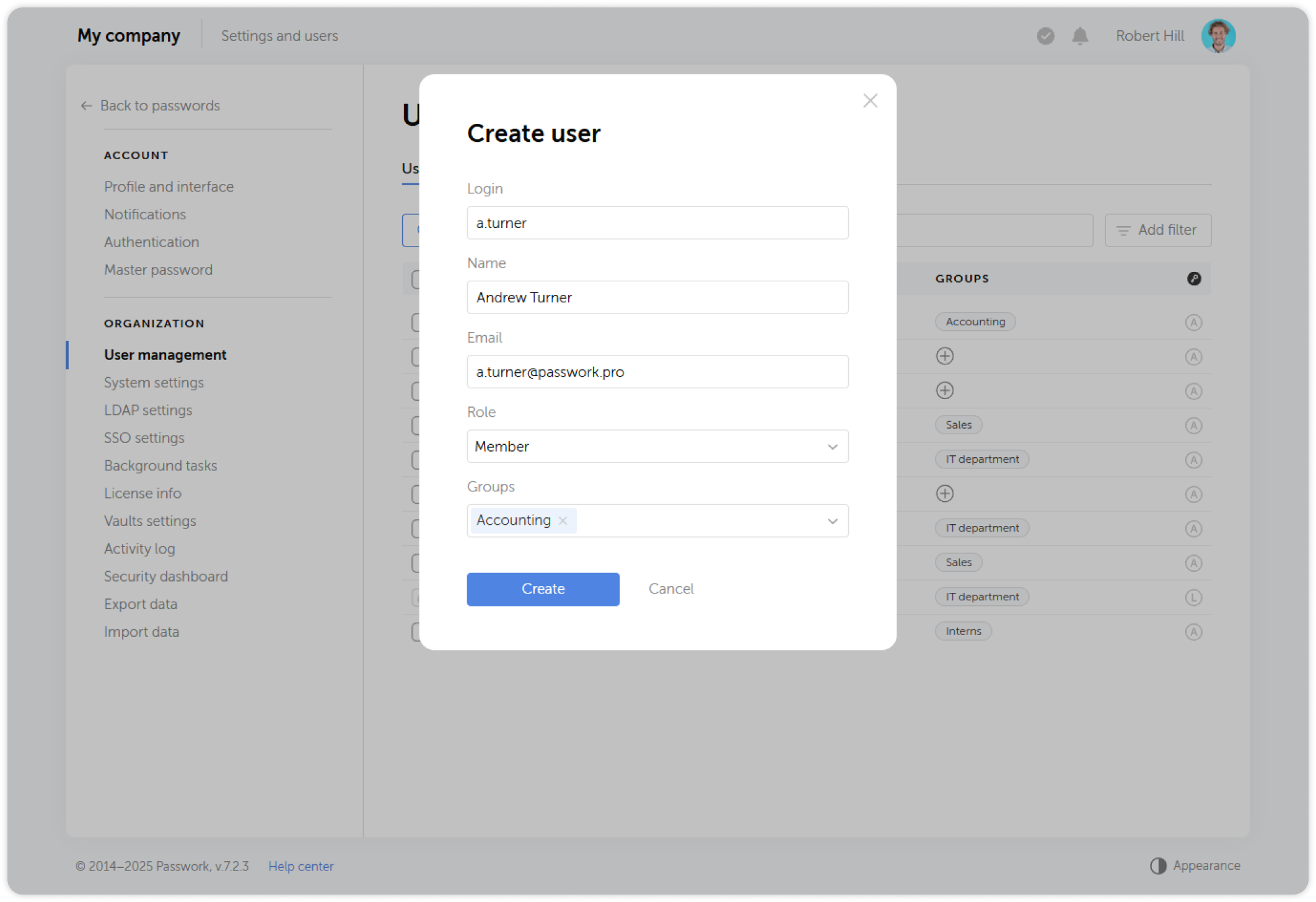
User account is the main account type in Passwork, which is meant to let users access the system. To create one, fill in the user information, assign a role and a group and confirm the action in the pop-up window.
Creating a service account
Service account are used to set up integration and automatization, as they allow generating several API tokens at once. It is not possible to sign in to Passwork under such account.
In the pop-up window choose the Service account tab, fill in the user details, assign role and group and confirm the action.
Invite users
You can quickly create an invite and share it with a user:
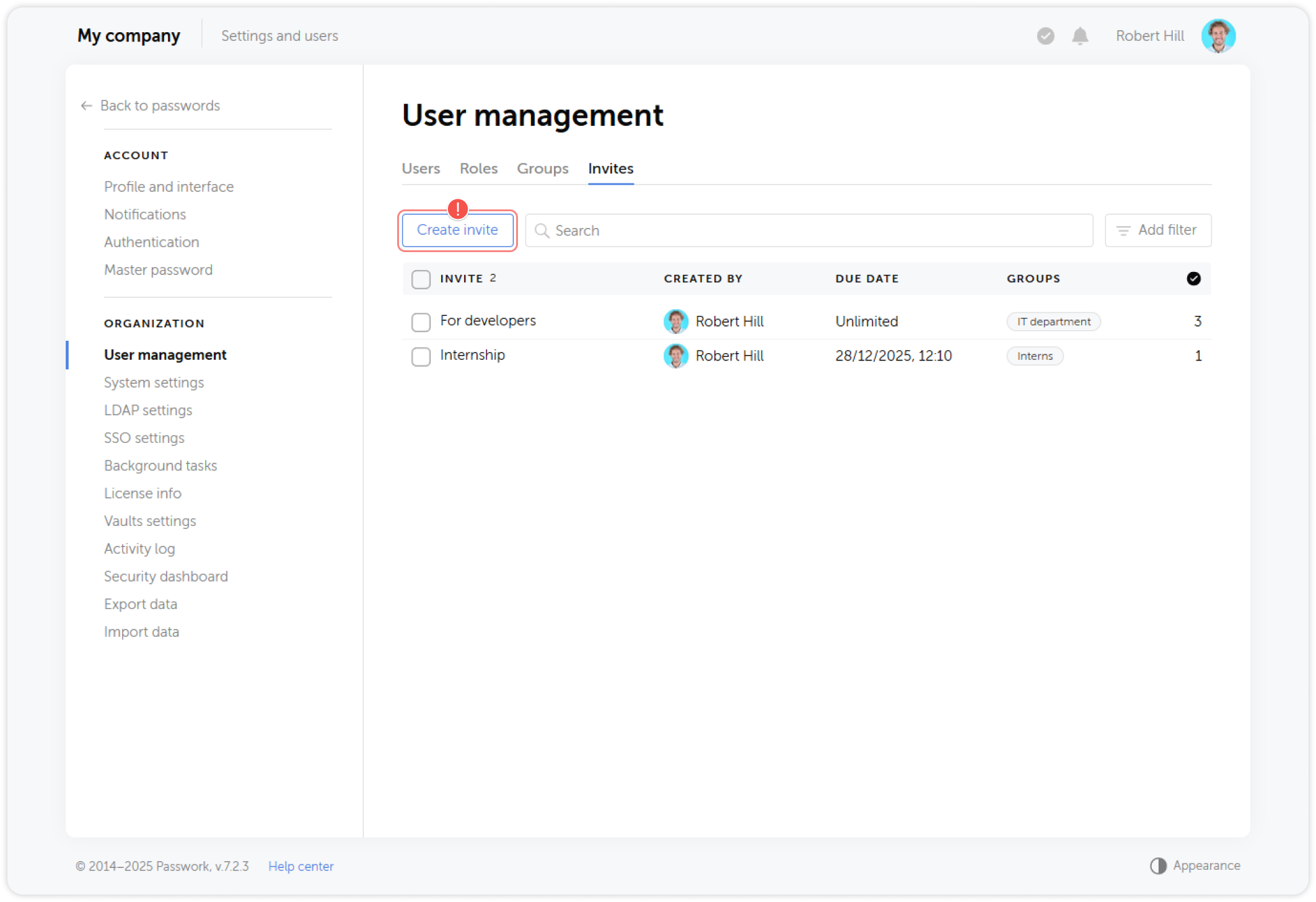
Go to the Invites tab and click Create invite at the top.
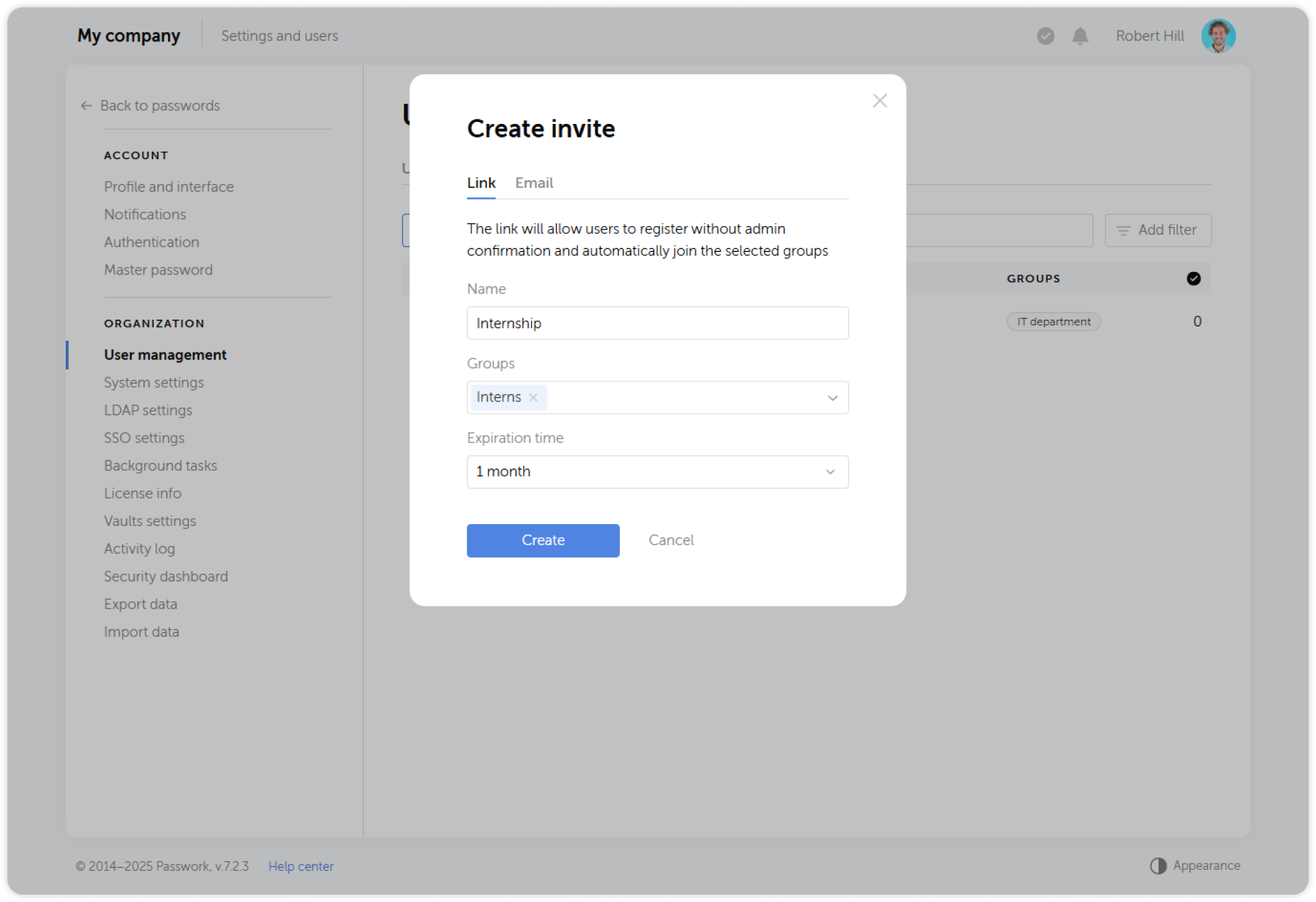
In the pop-up window, choose the invite type and configure it as needed.