



Windows Server
Obtaining current version of Passwork
- Open a web browser and go to the Customer Portal.
- Log in to the Customer Portal by entering the user's email;
- In the Download Center — Select version to get the current version of Passwork in .zip format:
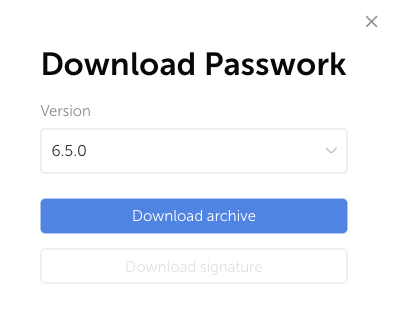
- Move the .zip archive to the server with Passwork.
Creating backup and configuration file copy
Creating backup
To create a MongoDB backup, you can use the following guide — Examples of creating and restoring backups
If Passwork is installed on a virtual or cloud OS, we recommend creating a snapshot of the operating system state to quickly restore Passwork functionality in case of errors.
Creating configuration file copy
The main Passwork parameters are specified in the config.ini configuration file. You need to create a copy of the file and save it in a separate or user's root directory:
- PowerShell
Copy-Item `
    -Path "C:\inetpub\wwwroot\passwork\app\config\config.ini" `
    -Destination "$PWD\" -Force
Updating Passwork code and creating archive of old version
Create a directory to store temporary files from the old version:
- PowerShell
mkdir C:\inetpub\copy_files
Create a copy of the config.ini configuration file and the license key:
- PowerShell
Copy-Item `
    -Path "C:\inetpub\wwwroot\passwork\app\config\config.ini" `
    -Destination "C:\inetpub\copy_files\" -Force

Copy-Item `
    -Path "C:\inetpub\wwwroot\passwork\app\keys\passwork*" `
    -Destination "C:\inetpub\copy_files\" -Force
Create an archive of the old Passwork version in C:\inetpub\:
- PowerShell
$version = Get-Content "C:\inetpub\wwwroot\passwork\version"
Compress-Archive -Path "C:\inetpub\wwwroot\passwork\*" -DestinationPath "C:\inetpub\$version.zip"
Delete the old version from the physical code location:
- PowerShell
Remove-Item -Path "C:\inetpub\wwwroot\passwork\*" -Recurse -Force
Extract the new Passwork version to C:\inetpub\wwwroot\passwork\:
- PowerShell
Expand-Archive `
    -Path "$PWD\Passwork-xxxxxx.zip" `
    -DestinationPath "C:\inetpub\wwwroot\passwork\"
Move the configuration file and license key to the new version:
- PowerShell
Move-Item `
    -Path "C:\inetpub\copy_files\config.ini" `
    -Destination "C:\inetpub\wwwroot\passwork\app\config\" -Force

Move-Item `
    -Path "C:\inetpub\copy_files\passwork*" `
    -Destination "C:\inetpub\wwwroot\passwork\app\keys\" -Force
After these actions, you can delete the temporary directory containing the configuration file and license key:
- PowerShell
Remove-Item -Path "C:\inetpub\copy_files" -Recurse -Force
Create rewrite rules and assign permissions to Passwork code
Create rules that modify URL requests in IIS
Create web.config for the URL Rewrite module:
- PowerShell
"<?xml version=`"1.0`" encoding=`"UTF-8`"?>
<configuration>
    <system.webServer>
        <rewrite>
            <rules>
                <rule name=`"Imported Rule 1`" stopProcessing=`"true`">
                    <match url=`"^app/(.*)/(.*)/template.([a-z-A-Z0-9]+).html`" ignoreCase=`"false`" />
                    <conditions logicalGrouping=`"MatchAll`">
                        <add input=`"{REQUEST_FILENAME}`" matchType=`"IsFile`" ignoreCase=`"false`" negate=`"true`" />
                    </conditions>
                    <action type=`"Rewrite`" url=`"app/{R:1}/{R:2}/template.html`" />
                </rule>
                <rule name=`"Imported Rule 2`" stopProcessing=`"true`">
                    <match url=`"^extension/js/(.*)/(.*)/template.([a-z-A-Z0-9]+).html`" ignoreCase=`"false`" />
                    <action type=`"Rewrite`" url=`"extension/js/{R:1}/{R:2}/template.html`" />
                </rule>
                <rule name=`"Imported Rule 3`" stopProcessing=`"true`">
                    <match url=`"^(.*)$`" ignoreCase=`"false`" />
                    <conditions logicalGrouping=`"MatchAll`">
                        <add input=`"{REQUEST_FILENAME}`" matchType=`"IsDirectory`" ignoreCase=`"false`" negate=`"true`" />
                        <add input=`"{REQUEST_FILENAME}`" matchType=`"IsFile`" ignoreCase=`"false`" negate=`"true`" />
                    </conditions>
                    <action type=`"Rewrite`" url=`"index.php?_url=/{R:1}`" appendQueryString=`"true`" />
                </rule>
            </rules>
        </rewrite>
    </system.webServer>
</configuration>" | Out-File -FilePath "C:\inetpub\wwwroot\passwork\public\web.config" -Encoding UTF8
Assign permissions to physical location of Passwork
Change system directory permissions and set permissions for the IIS web server:
- PowerShell
Invoke-Expression "icacls 'C:\inetpub\wwwroot' /grant 'Users:(OI)(CI)`M'"
Invoke-Expression "icacls 'C:\inetpub\wwwroot' /grant 'IIS_IUSRS:(OI)(CI)`M'"
Invoke-Expression "icacls 'C:\inetpub\wwwroot' /grant 'IUSR:(OI)(CI)`M'"
If Windows Server uses RU localization, permissions are assigned with the command:
- PowerShell
Invoke-Expression "icacls 'C:\inetpub\wwwroot' /grant 'Users:(OI)(CI)`M'"
Register PHP version and restart web server
Register PHP for new Passwork version
Import modules for IIS and PHP Manager:
- PowerShell
Import-Module IISAdministration
Import-Module WebAdministration
Add-PsSnapin PHPManagerSnapin
Unlock the IIS configuration file to register PHP:
- PowerShell
Invoke-Expression "$env:windir\system32\inetsrv\appcmd.exe unlock config -section:system.webServer/handlers"
Register the PHP version:
- PowerShell
New-PHPVersion -ScriptProcessor "$env:ProgramFiles\php8.2\php-cgi.exe" -SiteName "Passwork Web Site" -VirtualPath "/"
Restart IIS web server
To activate changes in IIS, you need to restart the IIS web server:
- PowerShell
Restart-Service -Name "W3SVC"