



Migration of Passwork database objects
Skip this step if using the Standard installation (Docker or PowerShell module) of Passwork.
Creating files for Passwork version 7
After upgrading Passwork to version 7, you need to create and fill the following files:
./init/config.env./init/encryption_key
./ — root location of Passwork:
- Windows Server — C:\inetpub\wwwroot\passwork
- Linux — /var/www
During the Passwork upgrade to version 7, a copy of the configuration file (config.ini) is created at the location:
- Windows Server —
C:\inetpub\wwwroot\config.ini - Linux —
/var/config.ini
Automatic creation and filling of Passwork configuration files
Linux
Download the script for automatic file generation:
- wget
- curl
wget https://repos.passwork.pro/repository/linux/scripts/config_convert.sh
curl -O https://repos.passwork.pro/repository/linux/scripts/config_convert.sh
Grant execution rights to the script:
- shell
chmod +x config_convert.sh
Before running the script, please ensure the following.
- If Passwork is installed in the standard location
/var/www/and the configuration fileconfig.iniis located in the expected directory/var/config.ini, run the script by default without arguments. Example:
sudo ./config_convert.sh
- If Passwork is installed in a non-standard location other than
/var/www/. For example, in/var/www/passwork/, you need to use the--output(or-o) argument, specifying the path to theinitdirectory containing the configuration files. Example:
sudo ./config_convert.sh --output /var/www/passwork/init
- If the Passwork configuration file
config.iniis located in a non-standard location other than/var/config.ini. For example, in/opt/config.ini, you need to use the--input(or-i) argument, specifying the file location. Example:
sudo ./config_convert.sh --input /opt/config.ini
The script converts the config.ini file into config.env and encryption_key, verifying their correctness.
Assign the web server user as the owner of the converted files:
- DEB
- RPM
chown www-data:www-data /var/www/init/*
chown apache:apache /var/www/init/*
Windows Server
Download the script for automatic file generation:
- PowerShell
(New-Object System.Net.WebClient).DownloadFile("https://repos.passwork.pro/repository/powershell/config_convert.ps1", "$PWD\config_convert.ps1")
Before running the script, please ensure the following.
- If Passwork is installed in the standard location
C:\inetpub\wwwroot\passworkand the configuration fileconfig.iniis located in the expected directoryC:\inetpub\wwwroot\config.ini, run the script by default without arguments. Example:
.\config_convert.ps1
- If Passwork is installed in a non-standard location other than
C:\inetpub\wwwroot\passwork. For example, inC:\inetpub\wwwroot\, you need to use the-outputDirectoryargument, specifying the path to theinitdirectory containing the configuration files. Example:
.\config_convert.ps1 -outputDirectory "C:\inetpub\wwwroot\init"
- If the Passwork configuration file
config.iniis located in a non-standard location other thanC:\inetpub\wwwroot\config.ini. For example, inC:\inetpub\config.ini, you need to use the-inputFileargument, specifying the file location. Example:
.\config_convert.ps1 -inputFile "C:\inetpub\config.ini"
The script converts the config.ini file into config.env and encryption_key, verifying their correctness.
If errors occur during automatic creation and filling, you can manually create and fill the files with values.
Manual Creation and Filling of Passwork Configuration Files
Creating and filling config.env file
Switchable code blocks are used to separate commands for Linux and Windows Server operating systems.
Create the Passwork configuration file:
- Linux
- Windows
touch /var/www/init/config.env
New-Item -ItemType File -Path "C:\inetpub\wwwroot\passwork\init\config.env" -Force
In the created file, specify the following lines:
- config.env
APP_URL=
MONGODB_URL=
MONGODB_DB=
MONGODB_USERNAME=
MONGODB_PASSWORD=

MIGRATION_DATABASE_URL=
MIGRATION_DATABASE_DB=
MIGRATION_DATABASE_USERNAME=
MIGRATION_DATABASE_PASSWORD=
Mapping and filling parameters from config.ini into config.env:
- APP_URL — Value of the domain parameter in config.ini
- MONGODB_URL — Value of the connectionString parameter in config.ini
- MONGODB_DB — Specify the new Passwork database name (pw)
- Migration will create, transfer, modify, and update all objects located in the legacy Passwork database;
- If MongoDB authentication is not configured, leave the parameters MONGODB_USERNAME, MONGODB_PASSWORD, MIGRATION_DATABASE_USERNAME, and MIGRATION_DATABASE_PASSWORD empty.
- MONGODB_USERNAME — Value of the username parameter in config.ini
- MONGODB_PASSWORD — Value of the password parameter in config.ini
- MIGRATION_DATABASE_URL — Value of the connectionString parameter in config.ini
- MIGRATION_DATABASE_DB — Value of the dbname parameter in config.ini
- MIGRATION_DATABASE_USERNAME — Value of the username parameter in config.ini
- MIGRATION_DATABASE_PASSWORD — Value of the password parameter in config.ini
If the algorithm parameter is specified in config.ini, perform this step; if not, skip it.
- ENCRYPTION_CIPHER — Value of the algorithm parameter in config.ini
If the disableClientSide parameter is specified in config.ini, perform this step; if not, skip it.
- IS_CLIENT_SIDE_ENCRYPTION_ENABLED=1
Example of a filled config.env configuration file
- config.env
APP_URL=https://passwork.local
MONGODB_URL=mongodb://localhost:27017
MONGODB_DB=pw
MONGODB_USERNAME=
MONGODB_PASSWORD=

MIGRATION_DATABASE_URL=mongodb://localhost:27017
MIGRATION_DATABASE_DB=pwbox
MIGRATION_DATABASE_USERNAME=
MIGRATION_DATABASE_PASSWORD=
Creating and filling encryption_key file
Switchable code blocks are used to separate commands for Linux and Windows Server operating systems.
Create the encryption_key file:
- Linux
- Windows
touch /var/www/init/encryption_key
New-Item -ItemType File -Path "C:\inetpub\wwwroot\passwork\init\encryption_key" -Force
In the created file, specify the secret value from config.ini:
- encryption_key
base64:fin2GvYi7V2X4bxg3bfrmx1dB/SEqXIBWOOysqCkJbY=
Passwork database migration
Description
Migration is intended to transfer all data from the legacy Passwork database to the new one. During migration, the following will be performed:
- Creation of new objects according to the current data structure;
- Transfer of existing data preserving their integrity;
- Updating and optimizing all Passwork database objects.
Migration guarantees that all data will be successfully transferred without loss, and Passwork version 7 will be able to fully operate with the updated database.
Running migration
Windows Server
Navigate to the root location of Passwork:
- PowerShell
cd "C:\inetpub\wwwroot\passwork"
Run the migration command:
- PowerShell
php -d "memory_limit=-1" .\bin\console database:v6:migration
Linux
Depending on the operating system, the migration should be run as the user under which the Apache web server runs.
- DEB
- RPM
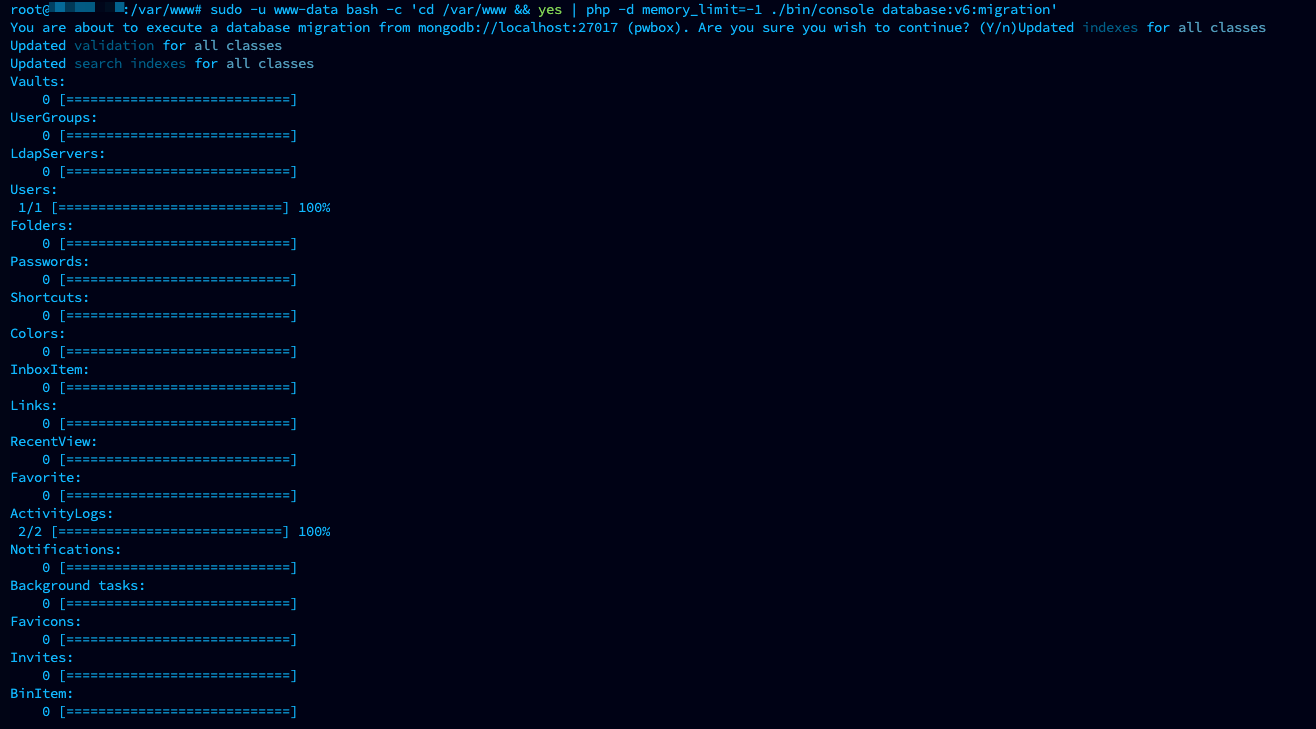
sudo -u www-data bash -c 'cd /var/www && yes | php -d memory_limit=-1 ./bin/console database:v6:migration'
sudo -u apache bash -c 'cd /var/www && yes | php -d memory_limit=-1 ./bin/console database:v6:migration'
Example of running and successful completion of migration:
After completion, these parameters in config.env are no longer needed and can be removed:
- shell
MIGRATION_DATABASE_URL=
MIGRATION_DATABASE_DB=
MIGRATION_DATABASE_USERNAME=
MIGRATION_DATABASE_PASSWORD=
The final stage for default encryption is completed and Passwork can be used for work.
Please review the post-migration actions