



Windows Server
Instructions for installing Passwork on the OS:
- Windows Server 2019
- Windows Server 2022
- Windows Server 2025
1. Minimum system requirements
Passwork is not demanding on system resources, and the required number of servers depends on the number of active users, the volume of stored data, and the system's fault tolerance requirements.
Please review the full system requirements.
2. Basic actions before installation
Using the Start context menu
- Right-click on the Start icon in the lower-left corner of the screen.
- Select “Windows PowerShell (Administrator)” from the context menu.
Using the Start menu
- Left-click on the Start icon in the lower-left corner of the screen.
- Type
powershell - Open PowerShell as “Administrator” using the combination —
Ctrl + Shift + Enter
Create a temporary directory for downloading packages and archives:
- PowerShell
New-Item -Path "C:\Windows\Temp\passwork_install" -ItemType Directory
Determine the names of user groups using SID:
- PowerShell
$userGroupSid = "S-1-5-32-545"
$userSecurityIdentifier = New-Object System.Security.Principal.SecurityIdentifier($userGroupSid)
$userGroupName = $userSecurityIdentifier.Translate([System.Security.Principal.NTAccount]).Value
$userGroupName = $userGroupName.Split("\")[1]

$iis_iusrsGroupSid = "S-1-5-32-568"
$iis_iusrsSecurityIdentifier = New-Object System.Security.Principal.SecurityIdentifier($iis_iusrsGroupSid)
$iis_iusrsGroupName = $iis_iusrsSecurityIdentifier.Translate([System.Security.Principal.NTAccount]).Value
$iis_iusrsGroupName = $iis_iusrsGroupName.Split("\")[1]
Install the IIS role with the module:
- PowerShell
Install-WindowsFeature -Name Web-Server -IncludeManagementTools
Install-WindowsFeature -Name Web-CGI -IncludeManagementTools
3. Installing PHP
Download the PHP archive:
- PowerShell
(New-Object System.Net.WebClient).DownloadFile("https://repos.passwork.pro/repository/windows_packages/php_build/83/php_latest.zip", "C:\Windows\Temp\passwork_install\php_latest.zip")
In case of errors download the archive manually
Extract the contents to Program Files:
- PowerShell
Expand-Archive `
    -Path "$env:SystemDrive\Windows\Temp\passwork_install\php_latest.zip" `
    -DestinationPath "$env:ProgramFiles\"
Add PHP utilities to the PATH environment variable:
- PowerShell
[System.Environment]::SetEnvironmentVariable("PATH", [System.Environment]::GetEnvironmentVariable("PATH", [System.EnvironmentVariableTarget]::Machine) + ";C:\Program Files\php8.3", [System.EnvironmentVariableTarget]::Machine)
$env:Path = [System.Environment]::GetEnvironmentVariable("PATH", [System.EnvironmentVariableTarget]::Machine)
Set permissions for the Users group on the PHP directory:
- PowerShell
Invoke-Expression "icacls '$env:ProgramFiles\php8.3' /grant '${userGroupName}:(OI)(CI)`M'"
4. Installing the MongoDB database
Download the MongoDB installer:
- PowerShell
(New-Object System.Net.WebClient).DownloadFile("https://repos.passwork.pro/repository/windows_packages/mongodb_database_latest.msi", "C:\Windows\Temp\passwork_install\mongodb_database_latest.msi")
In case of errors download the installer manually
Install MongoDB with default settings:
- PowerShell
Start-Process -FilePath "msiexec.exe" -ArgumentList "/l*v", "C:\Windows\Temp\mdbinstall.log", "/qb", "/i", "C:\Windows\Temp\passwork_install\mongodb_database_latest.msi", "SHOULD_INSTALL_COMPASS=0", "ADDLOCAL=Router,ServerService" -Wait
To install MongoDB on another drive, add "INSTALLLOCATION=A:\MongoDB"
Create a directory for MongoDB administration utilities:
- PowerShell
New-Item -ItemType Directory -Force -Path "$env:ProgramFiles\MongoDB\Tools\"
Download the administration utilities:
- PowerShell
(New-Object System.Net.WebClient).DownloadFile("https://repos.passwork.pro/repository/windows_packages/database_tools_latest.zip", "C:\Windows\Temp\passwork_install\database_tools_latest.zip")
In case of errors download the utilities manually
Extract the contents:
- PowerShell
Expand-Archive `
    -Path "$env:SystemDrive\Windows\Temp\passwork_install\database_tools_latest.zip" `
    -DestinationPath "$env:ProgramFiles\MongoDB\Tools\"
Add administration utilities to the PATH environment variable:
- PowerShell
[System.Environment]::SetEnvironmentVariable("PATH", [System.Environment]::GetEnvironmentVariable("PATH", [System.EnvironmentVariableTarget]::Machine) + ";C:\Program Files\MongoDB\Tools", [System.EnvironmentVariableTarget]::Machine)
$env:Path = [System.Environment]::GetEnvironmentVariable("PATH", [System.EnvironmentVariableTarget]::Machine)
5. Installing modules for IIS
Download the archive with modules:
- PowerShell
(New-Object System.Net.WebClient).DownloadFile("https://repos.passwork.pro/repository/windows_packages/iis_package_latest.zip", "C:\Windows\Temp\passwork_install\iis_package_latest.zip")
In case of errors download the modules manually
Extract the IIS modules:
- PowerShell
Expand-Archive `
    -Path "$env:SystemDrive\Windows\Temp\passwork_install\iis_package_latest.zip" `
    -DestinationPath "$env:SystemDrive\Windows\Temp\passwork_install\"
Install Visual C++:
- PowerShell
Start-Process `
    -FilePath "$env:SystemDrive\Windows\Temp\passwork_install\VC_redist.x64.exe" `
    -ArgumentList "/q" -Wait -ErrorAction Stop
Install PHP Manager:
- PowerShell
Start-Process -FilePath "msiexec.exe" `
    -ArgumentList "/i $env:SystemDrive\Windows\Temp\passwork_install\PHPManagerForIIS_x64.msi /quiet /norestart" `
    -Wait -ErrorAction Stop
Install URL Rewrite:
- PowerShell
Start-Process -FilePath "msiexec.exe" `
    -ArgumentList "/i $env:SystemDrive\Windows\Temp\passwork_install\rewrite_amd64_en-US.msi /quiet /norestart" `
    -Wait -ErrorAction Stop
6. Obtaining Passwork
Create a directory for Passwork:
- PowerShell
New-Item -ItemType Directory -Force -Path "C:\inetpub\wwwroot\passwork"
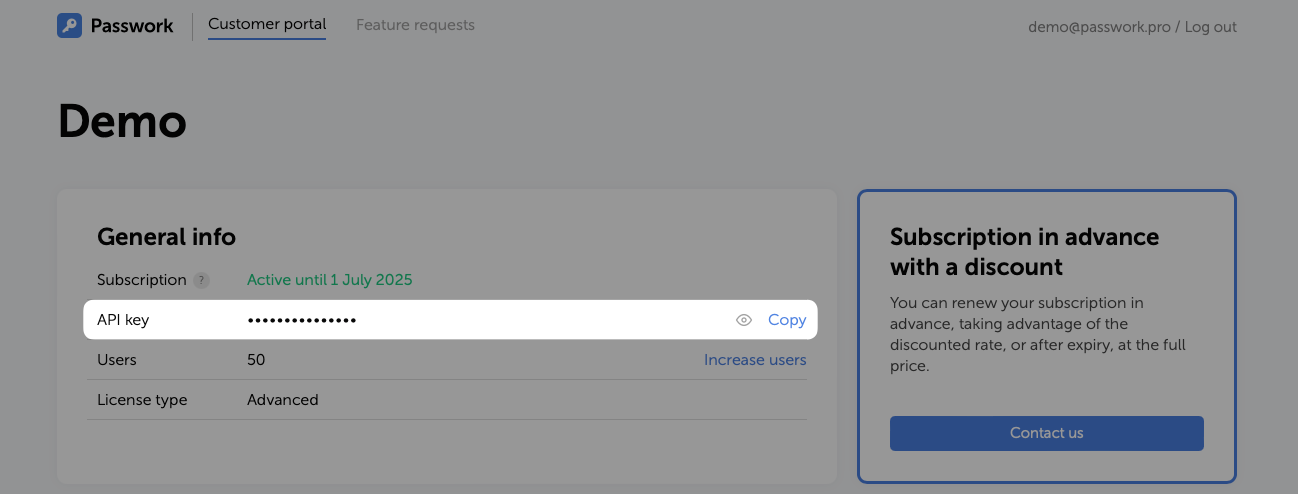
Go to the Passwork Customer Portal and copy the API key:
Create the API_KEY variable:
- PowerShell
$API_KEY = "your_api_key"
Check the available Passwork version from the client portal:
- PowerShell
Invoke-RestMethod -Uri "https://portal.passwork.pro/api/version?apikey=$API_KEY" -Method Get
Correct output
- PowerShell
response
--------
@{last-available-version=xxxxxxxx}
Download Passwork using the request:
- PowerShell
(New-Object System.Net.WebClient).DownloadFile("https://portal.passwork.pro/api/download?apikey=$API_KEY", "C:\Windows\Temp\passwork_install\passwork.zip")
Clear the API_KEY variable:
- PowerShell
Remove-Variable API_KEY
Extract the downloaded archive:
- PowerShell
Expand-Archive `
    -Path "$env:SystemDrive\Windows\Temp\passwork_install\passwork.zip" `
    -DestinationPath "$env:SystemDrive\inetpub\wwwroot\passwork\"
Download and place the web.config file into C:\inetpub\wwwroot\passwork\public\ for redirect rules:
Set permissions for the physical location of Passwork:
- PowerShell
Invoke-Expression "icacls '$env:SystemDrive\inetpub\wwwroot' /grant '${userGroupName}:(OI)(CI)`M'"
Invoke-Expression "icacls '$env:SystemDrive\inetpub\wwwroot' /grant '${$iis_iusrsGroupName}:(OI)(CI)`M'"
Invoke-Expression "icacls '$env:SystemDrive\inetpub\wwwroot' /grant 'IUSR:(OI)(CI)`M'"
7. Creating a website with PHP connection
Important: to ensure correct operation of Passwork, you must use the HTTPS protocol.
Load modules in PowerShell for IIS management:
- PowerShell
Import-Module IISAdministration
Import-Module WebAdministration
Add-PsSnapin PHPManagerSnapin
Unlock the handlers configuration in IIS:
- PowerShell
Invoke-Expression "$env:windir\system32\inetsrv\appcmd.exe unlock config -section:system.webServer/handlers"
Create a website named Passwork Web Site:
- PowerShell
New-WebSite -Name "Passwork Web Site" -Port "5353" -PhysicalPath "C:\inetpub\wwwroot\passwork\public" -Force
Register the PHP version for the website:
- PowerShell
New-PHPVersion -ScriptProcessor "$env:ProgramFiles\php8.3\php-cgi.exe" -SiteName "Passwork Web Site" -VirtualPath "/"
Activate drivers and extensions for the website:
- PowerShell
$extensions = @(
    "php_curl.dll",
    "php_gd.dll",
    "php_gettext.dll",
    "php_intl.dll",
    "php_ldap.dll",
    "php_mbstring.dll",
    "php_mongodb.dll",
    "php_mysqli.dll",
    "php_openssl.dll",
    "php_pdo_pgsql.dll",
    "php_pdo_sqlite.dll",
    "php_pgsql.dll",
    "php_soap.dll",
    "php_zip.dll",
    "php_fileinfo.dll"
)

foreach ($extension in $extensions) {
    Write-Host "PHP extension activated: $extension"
    Set-PHPExtension -Name $extension -Status Enabled -SiteName "Passwork Web Site" -VirtualPath "/"
}
Get the PHP version number into a variable:
- PowerShell
$phpVersion = (Get-PHPConfiguration -SiteName "Passwork Web Site" -VirtualPath "/").version
Update the list of HTTP methods allowed for the PHP handler:
- PowerShell
Set-WebConfigurationProperty -PSPath "IIS:\Sites\Passwork Web Site" -Filter "system.webServer/handlers/add[@name='php-$phpVersion']" -Name "verb" -Value "GET,HEAD,POST,PUT,DELETE,PATCH"
8. Configuring the web server for HTTPS protocol
To ensure correct operation, you must use the HTTPS protocol. Using HTTP will cause errors.
8.1 Generating a self-signed SSL certificate
Create a self-signed SSL certificate with the server name value:
- PowerShell
$dnsName = "$env:COMPUTERNAME"
$newCert = New-SelfSignedCertificate -DnsName $dnsName -CertStoreLocation cert:\LocalMachine\My
8.2 Creating IIS binding for HTTPS access
Create an HTTPS binding on the Passwork website:
- PowerShell
New-WebBinding -Name "Passwork Web Site" -IPAddress "*" -Port "443" -Protocol "https"
Get the current binding of the Passwork website:
- PowerShell
$binding = Get-WebBinding -Name "Passwork Web Site" -Protocol "https"
Bind the previously created self-signed SSL certificate to the website's HTTPS protocol:
- PowerShell
$binding.AddSslCertificate($newCert.GetCertHashString(), "my")
Restart the IIS web server:
- PowerShell
Restart-Service -Name "W3SVC"
9. Passing checklist
When connecting to Passwork for the first time, you need to go through the parameter checklist, during which the following will be performed:
- Checking necessary parameters
- Connecting to the MongoDB database
- Choosing a data encryption mode
- Randomly generated key for encrypting data in MongoDB
- License key verification
After passing the checklist, you will be prompted to create the first user in Passwork, where you need to specify the login, password, and email address for sending notifications.
Additional component parameters, security settings, and Passwork system configuration are available in the advanced settings section.
10. Configuring background tasks
Background tasks are tasks that run on a scheduler in the background. Learn how to configure background tasks.
Background tasks are mandatory for the correct operation of some Passwork functionality, such as:
- LDAP operations;
- Sending email notifications;
- Downloading favicons;
- Cleaning the session collection in the Passwork database.