



SSO configuration with Keycloak
Before configuring SSO, make sure that the APP_URL parameter in config.env matches the current Passwork domain, for example — APP_URL=https://passwork.example.com
This is necessary so that the IDP can download the metadata. Also, the Passwork server must operate over the HTTPS protocol.
The following server names are used as examples:
- Provider (IDP) — keycloack.passwork.local
- Passwork Server (SP) — passwork.example.com
Creating an application by importing a file into Keycloak
Obtain and edit the file to create an application on the IDP side.
keycloack.json
- json
"clientId": "https://your_host/api/v1/sso/metadata",
"adminUrl": "https://your_host/api/v1/sso/acs",
"baseUrl": "https://your_host/*",
"saml.logout.url": "https://your_host/api/v1/sso/sls"
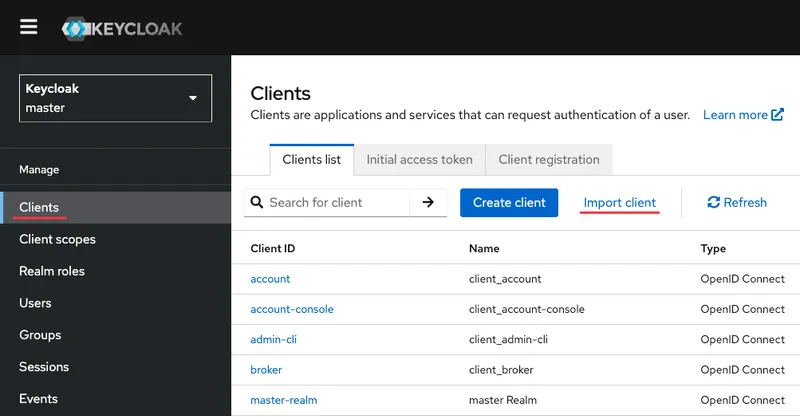
Open the Keycloak web interface and go to — Clients → Import client:
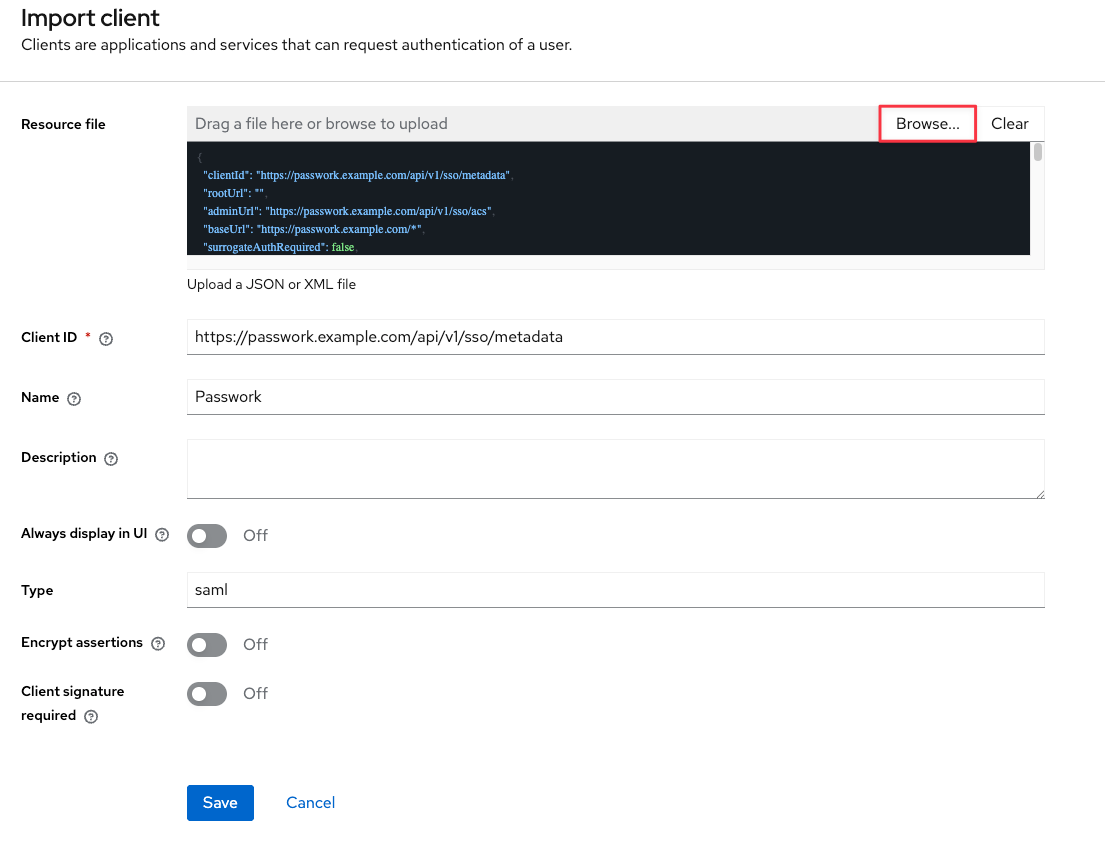
Perform the following actions:
- Import the modified application file;
- Set the name of the application being created;
- Disable — Encrypt assertions;
- Disable — Client signature required.
Save the changes made:
If necessary, you can change the unique user identifier (NameID) inside the SAML assertion after saving the previous steps:
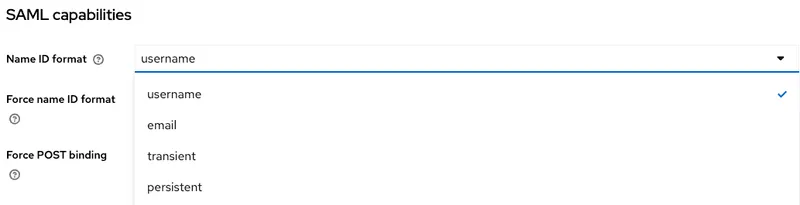
We recommend specifying username or email, depending on the chosen value the user's login in Passwork may have the following formats:
- username
- [email protected]
Configuring user role transmission in SAML assertion
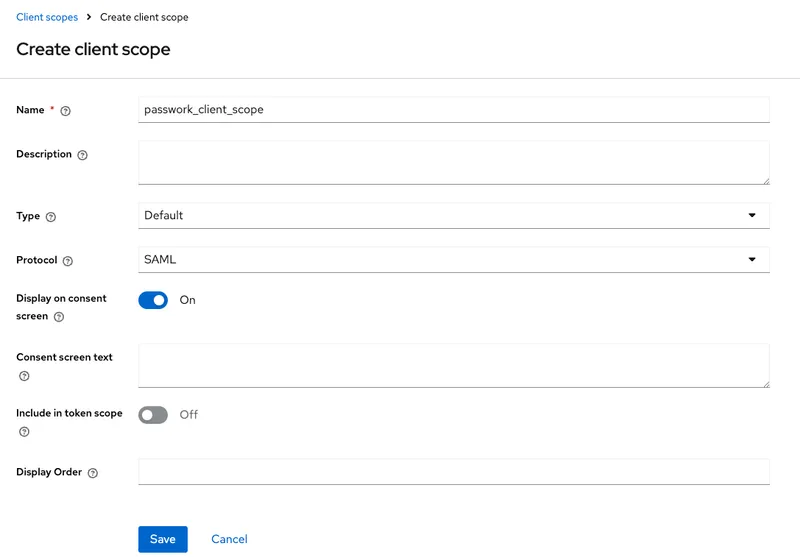
Go and create a common settings set for the application (SP) — Client scopes → Create client scope:
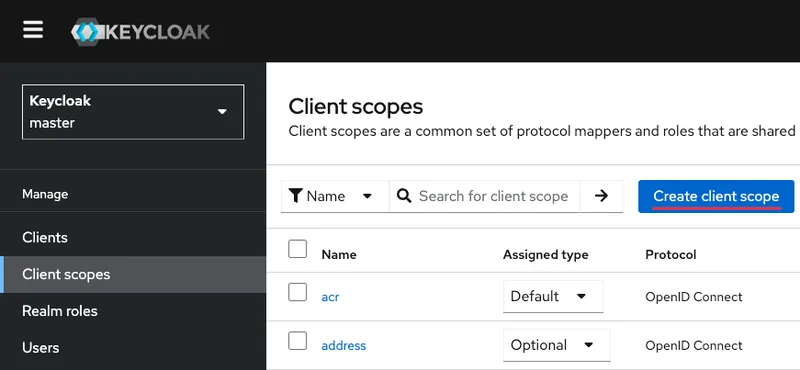
Perform the following actions:
- Set the name;
- Type — Default;
- Protocol — SAML.
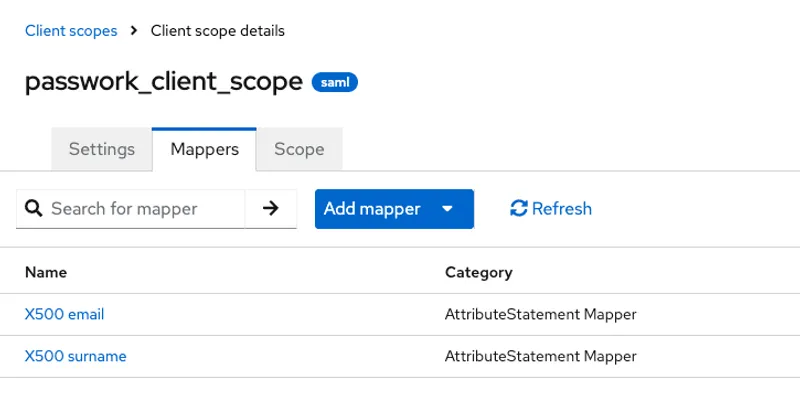
Open the Mappers tab and create attribute assertions to transmit additional user attributes from Keycloak (IDP) to Passwork (SP):
- Adding an assertion to transmit email:
- Add predefined mapper → X500 email;
- Open the added assertion from the template and change:
- SAML Attribute Name — email;
- SAML Attribute NameFormat — Basic.
- Adding an assertion to transmit firstName:
- Add mapper → From predefined mappers → X500 surname;
- Open the added assertion from the template and change:
- Property — firstName;
- SAML Attribute Name — firstName;
- SAML Attribute NameFormat — Basic.
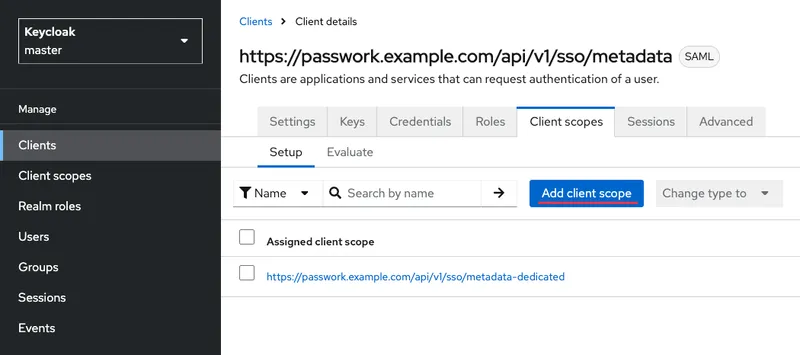
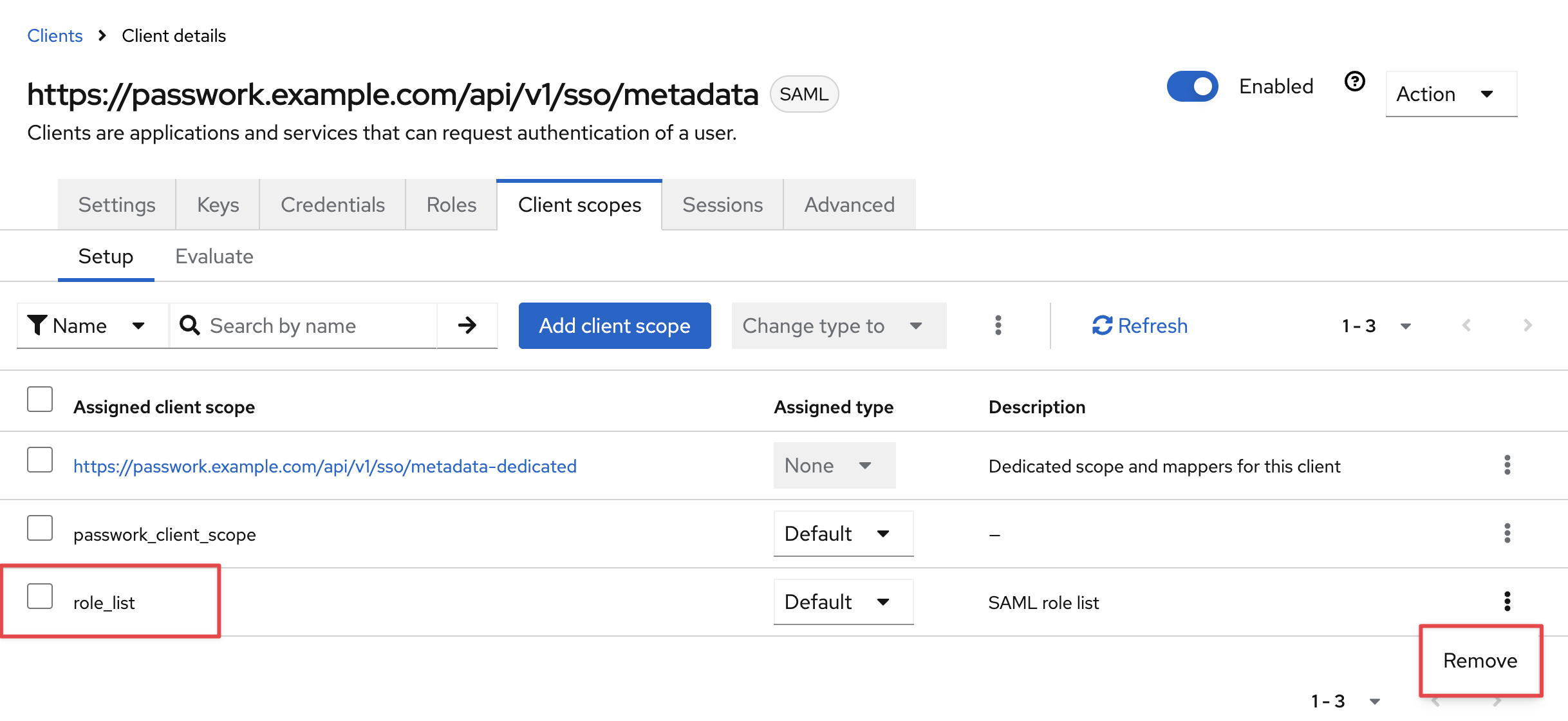
Assign the created settings set (Client scope) to the created application (SP) — Clients → Passwork → go to the Client scopes tab → Add client scope:
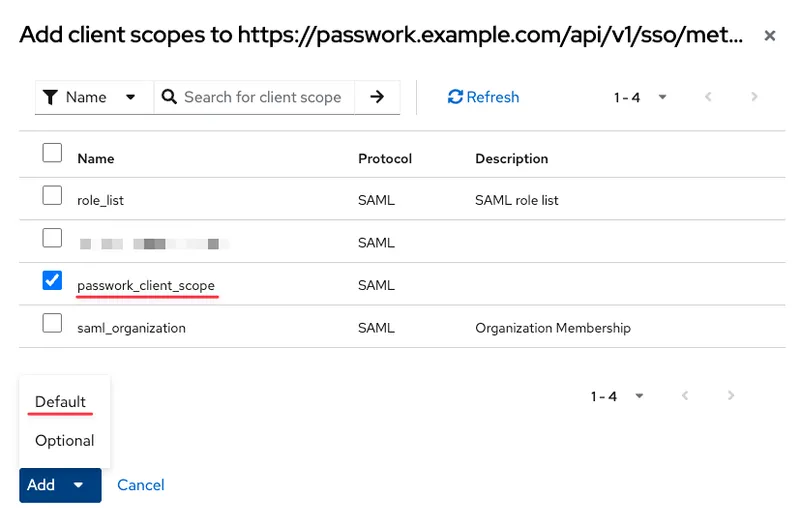
Select the created set passwork_client_scope from the list with Assigned type — Default:
Delete the default added settings template — role_list:
Configuring and filling in Single Sign-On (SSO) parameters in Passwork
Filling in the "User Attributes" values
Log in to the Passwork web interface, go to — Settings and Users → SSO Settings and fill in the mapping attributes:
- Email attribute — email;
- Full name attribute — firstName.
Filling in the "Identity Provider → Passwork" values
Open the service provider configuration (IDP) — Realm settings → General → Endpoints:
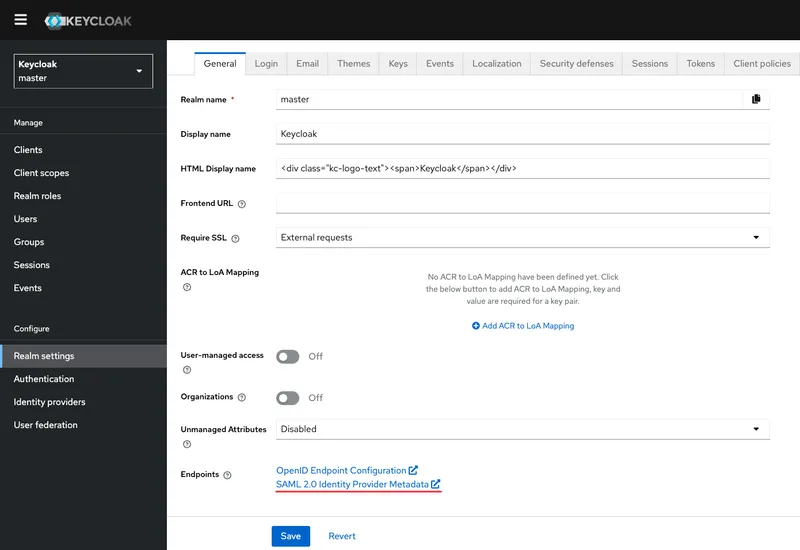
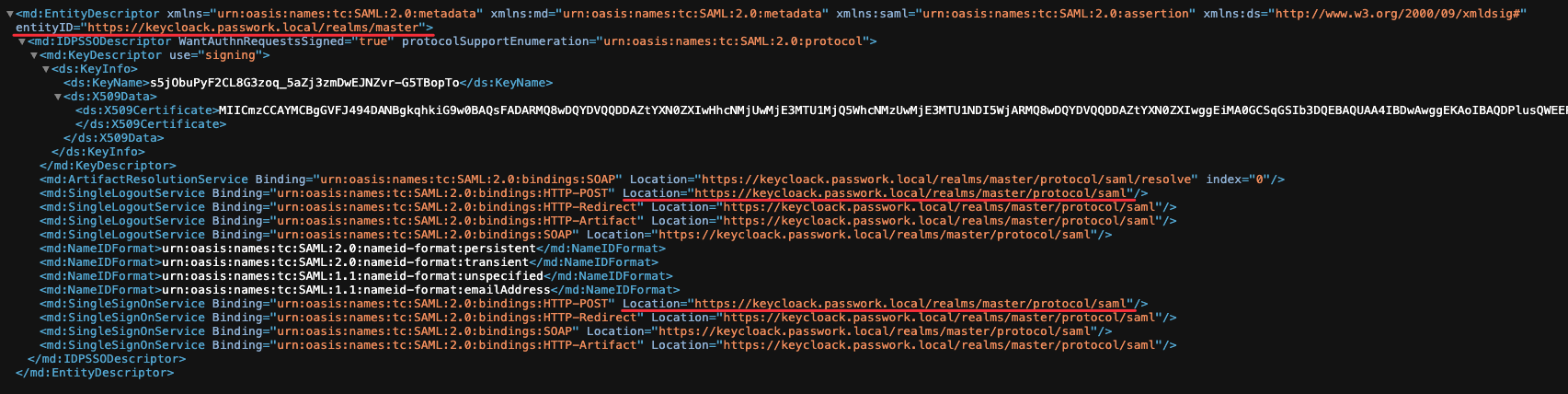
Copy the following parameter values:
- xml
entityID="https://keycloack.passwork.local/realms/master"
<md:SingleLogoutService Location="https://keycloack.passwork.local/realms/master/protocol/saml"/>
<md:SingleSignOnService Location="https://keycloack.passwork.local/realms/master/protocol/saml"/>
Example of xml output
Open — Settings and Users → SSO Settings and fill in the values:
- Identifier (Entity ID) — https://keycloack.passwork.local/realms/master
- Login URL — https://keycloack.passwork.local/realms/master/protocol/saml
- Logout URL — https://keycloack.passwork.local/realms/master/protocol/saml
Filling in the "Certificate" value
Open and copy the generated SSL certificate in base64 format — Realm settings → Keys → Certificate:
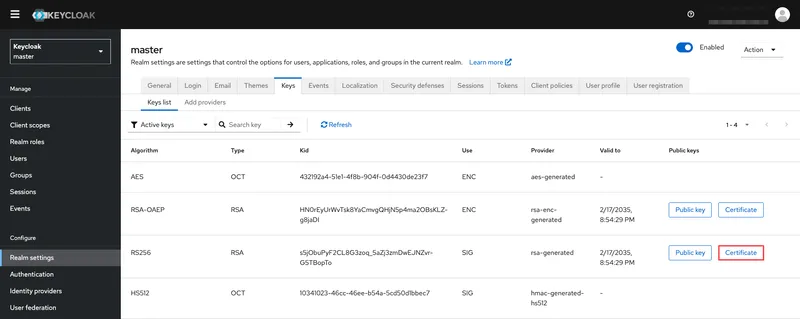
Paste the copied SSL certificate into the corresponding field — Settings and Users → SSO Settings.
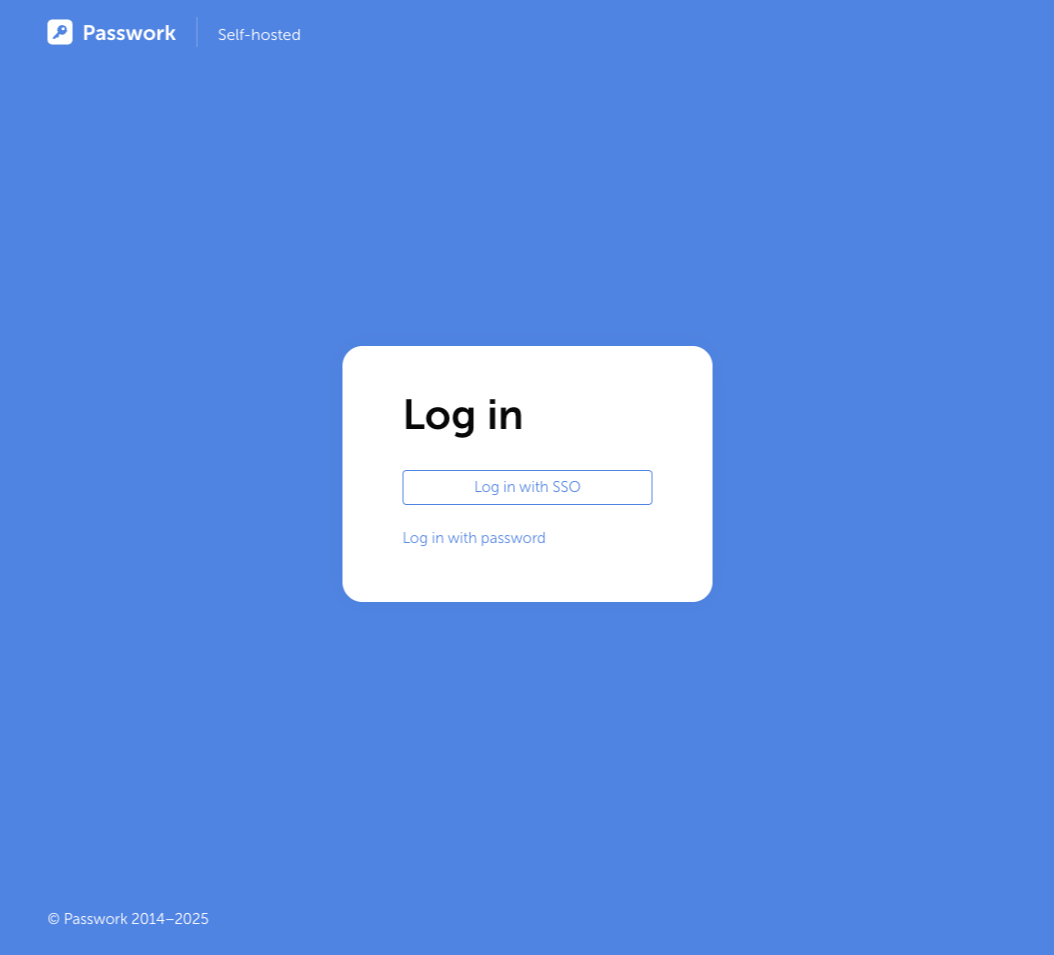
Open the login window in the Passwork web interface and log in via SSO to verify correct configuration:
Possible errors
If errors occur, they will be located in the PHP log file
The SSO response cannot be correctly decrypted because the certificate fingerprint was copied incorrectly or it is the fingerprint of the wrong certificate:
OneLogin_Saml2_Error: invalid_response LastErrorReason: Signature validation failed. SAML Response rejected in /var/www/app/modules/Admin/SSO/SsoController.php:78\nStack trace:\n#0 [internal function]: Passwork\\Modules\\Admin\\SSO\\SsoController->acsAction()\n#1 [internal function]: Phalcon\\Dispatcher\\AbstractDispatcher->callActionMethod()\n#2 [internal function]:Phalcon\\Dispatcher\\AbstractDispatcher->dispatch()\n#3 /var/www/public/index.php(91): Phalcon\\Mvc\\Application->handle()\n#4 {main}
The current host value in the APP_URL parameter of the config.env file is incorrect:
OneLogin_Saml2_Error: Invalid array settings: sp_acs_url_invalid, sp_sls_url_invalid in /var/www/app/vendors/php-saml/lib/Saml2/Settings.php:122\nStack trace:\n#0 /var/www/app/vendors/php-saml/lib/Saml2/Auth.php(152): OneLogin_Saml2_Settings->__construct()\n#1 /var/www/app/modules/Admin/SSO/SsoService.php(53): OneLogin_Saml2_Auth->__construct()\n#2 /var/www/app/modules/Admin/SSO/SsoController.php(33): Passwork\\Modules\\Admin\\SSO\\SsoService->getAuth()\n#3 [internal function]: Passwork\\Modules\\Admin\\SSO\\SsoController->loginAction()\n#4 [internal function]: Phalcon\\Dispatcher\\AbstractDispatcher->callActionMethod()\n#5 [internal function]: Phalcon\\Dispatcher\\AbstractDispatcher->dispatch()\n#6 /var/www/public/index.php(91): Phalcon\\Mvc\\Application->handle()\n#7 {main}, referer:
The user lacks the attribute used for login:
OneLogin_Saml2_Error: invalid_response LastErrorReason: The status code of the Response was not Success,was Responder -> urn:oasis:names:tc:SAML:2.0:status:InvalidNameIDPolicy in /var/www/app/modules/Admin/SSO/SsoController.php:78\nStack trace:\n#0 [internal function]:Passwork\\Modules\\Admin\\SSO\\SsoController->acsAction()\n#1 [internal function]: Phalcon\\Dispatcher\\AbstractDispatcher->callActionMethod()\n#2 [internal function]:Phalcon\\Dispatcher\\AbstractDispatcher->dispatch()\n#3 /var/www/public/index.php(91): Phalcon\\Mvc\\Application->handle()\n#4 {main}