



Windows Server
Prepare the following information
1. Error screenshot
Take a screenshot of the page where the problem or error occurs.
If you can open Passwork, you should also take a screenshot of the page with the developer console open.
Example of a screenshot with the developer console open:
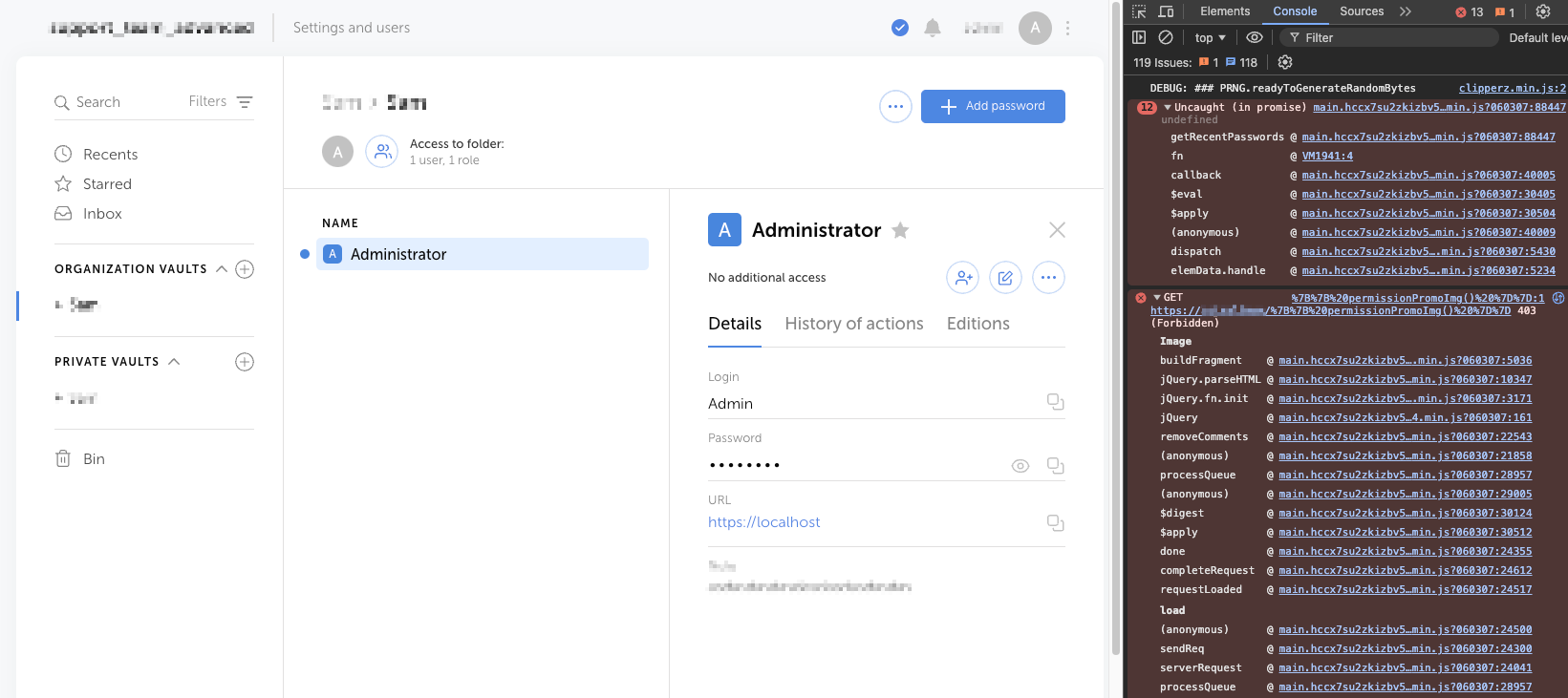
How to open the developer console in the most popular browsers:
Google Chrome: open the developer console with the shortcut Ctrl+Shift+J;
Mozilla Firefox: open the developer console with the shortcut Ctrl+Shift+I;
Opera: open the developer console with the shortcut Ctrl+Shift+I;
Safari: open the developer console with the shortcut Cmd+Option+I;
Microsoft Edge: press the F12 key and go to the console tab.
2. PHP log file
Open PowerShell as administrator:
- Right-click the Start icon in the lower-left corner of the screen;
- Select Windows PowerShell (Administrator) from the context menu.
Load modules for managing the web server:
- PowerShell
Import-Module IISAdministration
Import-Module WebAdministration
Add-PsSnapin PHPManagerSnapin
List the created IIS websites using the Get-WebSite command
Get the PHP configuration of the Passwork website:
- PowerShell
Get-PHPConfiguration -SiteName "Passwork Web Site" -VirtualPath "/"
The output will show the path to the PHP log file:
- PowerShell
ErrorLog : C:\Windows\Temp\php-8.3.20_errors.log
3. IIS log file
IIS log files are generated automatically and located at:
- PowerShell
dir "$env:SystemDrive\inetpub\logs\LogFiles\W3SVC {1} or {2}\"
Example of a log file name:
- PowerShell
u_ex241003.log
Send the collected information to [email protected]
Or to the technical specialist you are corresponding with.